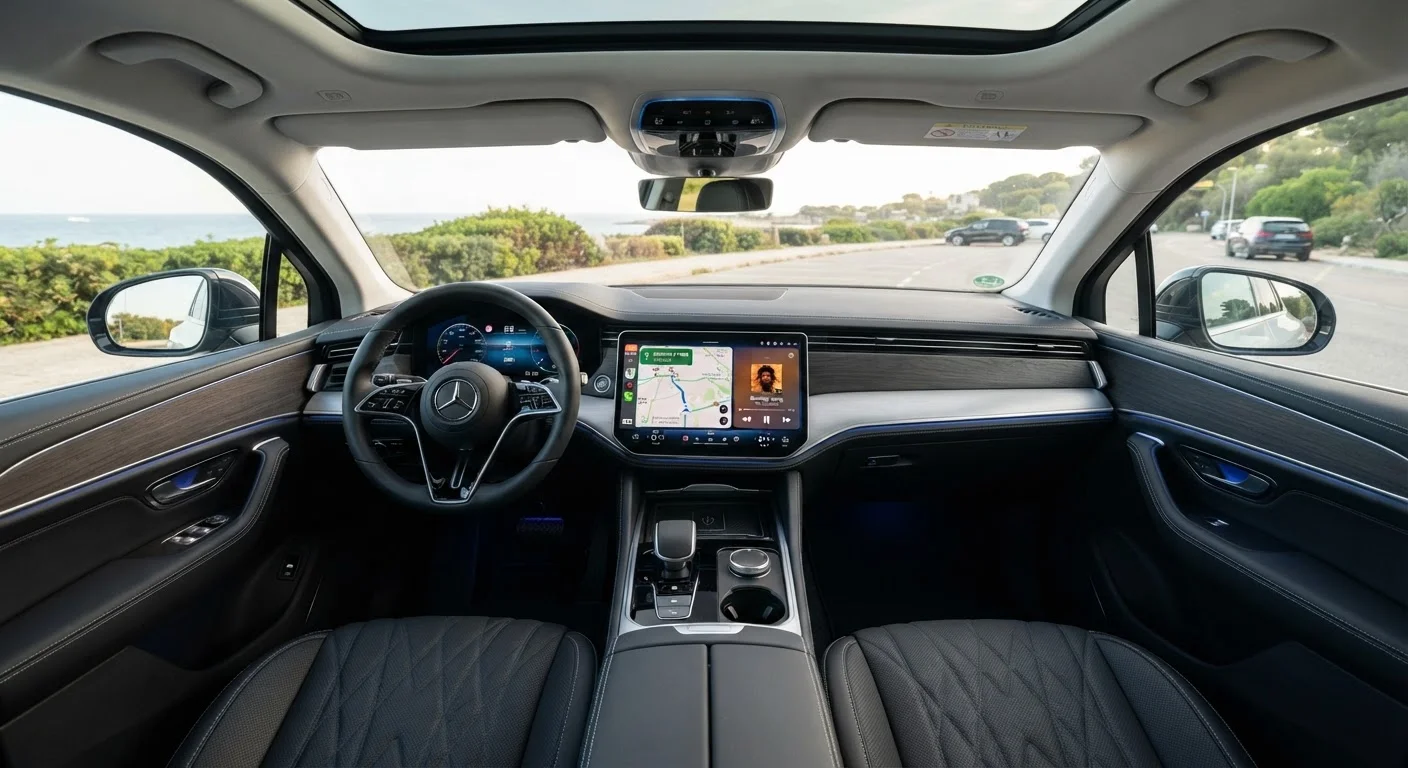
What an Infotainment System Actually Is
The term infotainment blends 'information' and 'entertainment,' but today's systems do far more than play music or show a map. A modern infotainment system is the nerve center of your car's interior - a software platform that manages audio, navigation, phone connectivity, climate control (on many vehicles), and a growing list of vehicle settings, all accessible from one or more touchscreens.
Think of it as the operating system of your car's cabin. Just as a smartphone's OS determines how easy the device is to use, the infotainment platform shapes your daily experience behind the wheel. A well-designed system makes common tasks - changing a route, skipping a track, answering a call - feel effortless. A poorly designed one can feel like a distraction in itself.
For context on how the infotainment system fits into the broader set of connected features in a vehicle, the complete buyer's reference on infotainment and connectivity covers the full landscape in one place.
Infotainment system
The central software platform in a car's cabin that manages audio, navigation, phone connectivity, and vehicle settings through one or more touchscreens.
Apple CarPlay / Android Auto
Phone-mirroring technologies that display your smartphone's interface on the car's screen, letting you use your phone's maps and apps while driving hands-free.
Native apps
Applications built directly into the car's own infotainment software, running independently of your smartphone and controlled by the automaker's update schedule.
Driver profile
A saved set of personal preferences - seat position, audio settings, display layout - that a driver can recall instantly without re-adjusting everything from scratch.
Over-the-air (OTA) update
A software update delivered to the vehicle via a wireless internet connection, capable of adding features or fixing bugs without requiring a visit to a dealership.
HMI (Human-Machine Interface)
The design of how a driver interacts with the vehicle's controls - including touchscreen layout, button placement, and voice commands - affecting how intuitive the system feels in use.
The Main Screens and What They Control
Most infotainment systems are organized into a home screen with tiles or tabs leading to major function areas. Here is what each area typically controls:
- Audio: Manages radio (AM/FM/satellite), streaming services, Bluetooth audio, and USB playback. Many systems also include equalizer and sound-staging controls. For a deeper look at what audio specs mean in practice, see the guide on in-car audio systems.
- Navigation: Built-in maps allow turn-by-turn directions without a phone. Quality varies widely - some systems offer real-time traffic, others do not.
- Phone: Displays call history, contacts, and active calls. Most systems support hands-free calling via Bluetooth so you never need to touch your phone.
- Vehicle Settings: Increasingly common, this menu controls driver-assist sensitivity, ambient lighting, suspension modes, and driver profiles - functions once split across physical switches.
- Climate: On vehicles that integrate HVAC into the touchscreen, temperature zones, fan speed, and seat heating are managed here rather than via dedicated knobs.
Screen size affects how much information is visible at once, but it does not guarantee usability. Screen size and resolution both matter - but so does menu depth, glare resistance, and how many taps a common task requires.
Smartphone Integration: Mirroring vs. Native Apps
One of the most practically important distinctions in any infotainment system is how it handles your smartphone. There are two fundamentally different approaches:
Phone Mirroring (CarPlay / Android Auto)
Apple CarPlay and Android Auto project a simplified version of your phone's interface onto the car's screen. Navigation runs through Apple Maps or Google Maps (with your live map data), music plays from your phone's apps, and messages are handled through your phone's assistant. The car's screen essentially becomes a display for your phone. This means the apps stay current as long as your phone updates - a meaningful advantage over built-in systems that can fall behind.
Native Apps
Some manufacturers build their own app ecosystems directly into the infotainment software. These run independently of your phone and may include streaming services, manufacturer-specific navigation, or voice assistants. The trade-off: native apps depend on the automaker's update cycle and may not always match the breadth or polish of phone-based alternatives. The comparison of native vs. mirrored apps explains the reliability and compatibility implications in more detail.
In practice, most buyers find that CarPlay or Android Auto covers their daily needs reliably, making the quality of a car's built-in navigation or streaming less critical than it once was.
Settings That Actually Matter Day-to-Day
Beyond the main function areas, a handful of settings have an outsized impact on everyday usability:
- Driver Profiles
- Store your seat, mirror, audio, and display preferences. Invaluable in multi-driver households - each person can recall their full setup instantly.
- Display Brightness and Theme
- Auto-dimming at night reduces eye strain. A dark mode option is worth checking during an evening test drive.
- Audio Presets and Balance
- Equalizer curves, fade/balance settings, and volume normalization (which smooths out volume differences between sources) affect how music sounds across your specific cabin.
- Navigation Preferences
- Options like avoiding tolls, preferred route type, and home/work address shortcuts save real time on routine trips.
- Voice Command Activation
- Whether the system uses a physical button or a wake word affects how easily you can issue hands-free commands without taking your eyes off the road.
Some vehicles also expose drive mode settings - such as Eco, Sport, or Comfort - through the infotainment interface rather than a dedicated physical switch. Knowing where these live before you buy prevents surprises later.
Use Voice Commands From Day One
Many drivers ignore voice control and tap through menus instead - but a reliable voice assistant is genuinely the safest way to interact with infotainment while moving. During your test drive, try issuing a navigation command and adjusting volume by voice. If the system responds accurately without multiple attempts, that's a meaningful daily convenience worth factoring into your comparison.
Evaluating Infotainment Before You Buy
The spec sheet rarely tells you what living with a system feels like. Use your test drive deliberately:
- Test response time. Tap the screen briskly. A half-second lag on every interaction compounds quickly in daily use.
- Count the taps. How many screen presses does it take to change a radio station or adjust the fan? More than two or three is a usability warning sign.
- Check sunlight readability. Park facing the sun momentarily and see if the display washes out.
- Connect your phone. Plug in via USB or connect wirelessly and confirm CarPlay or Android Auto launches without friction.
- Try a voice command. Ask for navigation to an address. Evaluate whether the system understood you quickly and responded correctly.
- Find the volume knob - or its absence. Physical volume controls are faster and safer than on-screen sliders; note whether the vehicle has them.
For a structured walkthrough of everything to check before committing to a purchase, see what to check in a car's infotainment system before you sign anything. And once you own the vehicle, using infotainment without driving distracted offers practical habits for getting full value from your system safely.
Finally, consider long-term software support. Vehicles with over-the-air update capability can improve their infotainment experience after purchase - a meaningful factor when comparing otherwise similar vehicles.