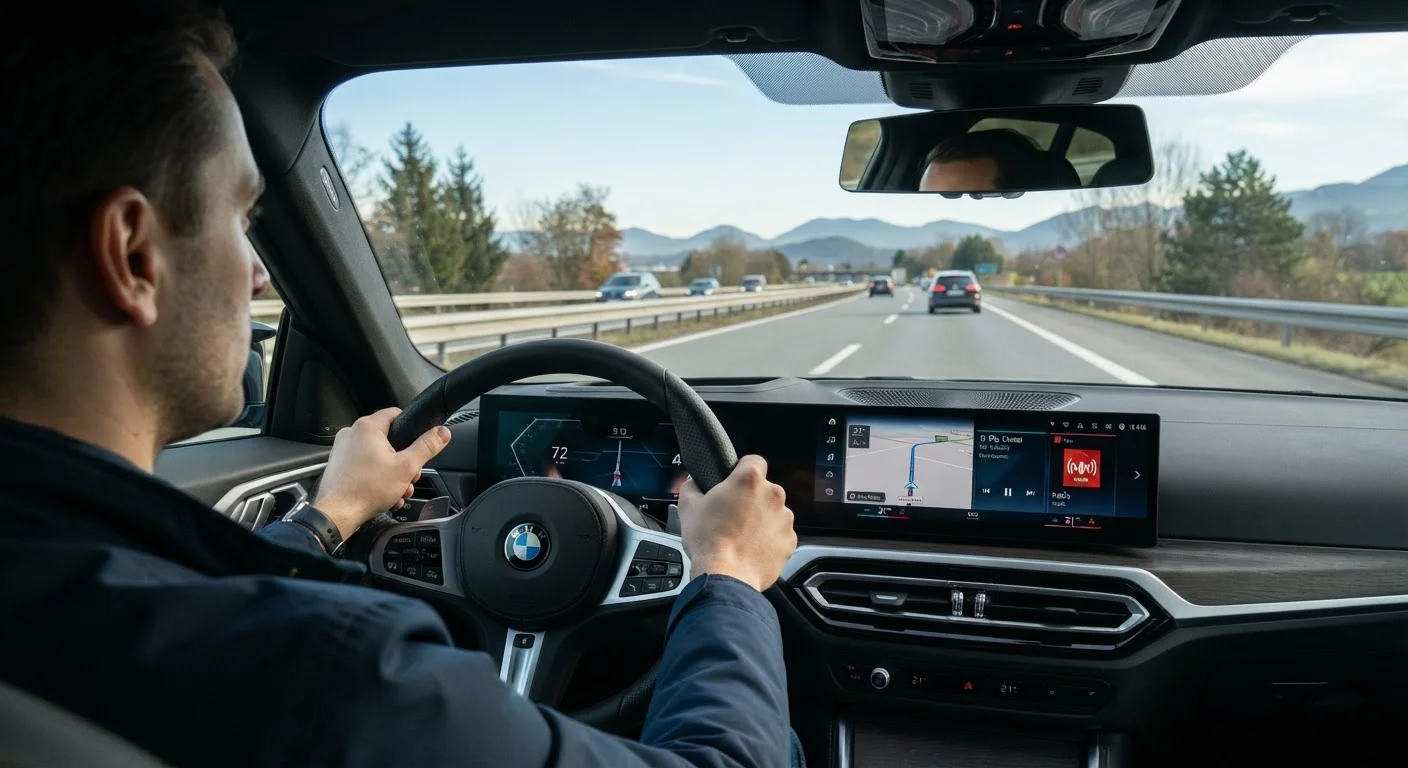
Why Infotainment Distraction Is a Real Risk
Modern infotainment systems pack navigation, media, climate, phone calls, and vehicle settings into a single touchscreen - often a large one. That consolidation is genuinely useful, but it also concentrates multiple sources of driver distraction in one place. Research by the National Highway Traffic Safety Administration (NHTSA) consistently identifies visual and cognitive distraction as major contributors to traffic incidents.
The core problem is that touchscreens require you to look away from the road to locate and tap controls. At 60 mph, a glance lasting just two seconds means your vehicle travels roughly 176 feet with no meaningful driver input. That gap is longer than most people intuitively realize.
Understanding this risk doesn't mean avoiding infotainment - it means learning to use it deliberately. The practices below help you extract full value from your system while keeping your attention where it belongs. For a broader look at how various in-car factors compete for your focus, see this overview of in-car distractions.
Best Practices for Safer Infotainment Use
These habits apply regardless of which make or system your vehicle uses. They work with factory-installed units, Apple CarPlay, Android Auto, and aftermarket head units alike.
Configure destinations, playlists, and contacts before you start the engine.
Pre-trip setup eliminates the most demanding infotainment tasks before the vehicle is in motion. Entering a navigation address, queuing music, or finding a contact number all require sustained visual attention that is simply unsafe at any speed.
Use steering wheel controls and physical buttons as your primary in-motion interface.
Tactile controls allow you to adjust volume, skip tracks, or answer calls without looking away from the road. Touchscreens offer no tactile feedback, which means every interaction requires visual confirmation. If your vehicle has steering wheel audio and phone buttons, learn them and use them habitually.
Delegate infotainment tasks to a passenger whenever one is available.
A front-seat passenger can safely navigate menus, enter destinations, adjust settings, and respond to notifications without any road-safety cost. Many drivers default to doing everything themselves out of habit - actively shifting that responsibility is a meaningful safety improvement.
Use voice commands for any infotainment interaction that arises while driving.
Voice input keeps both hands on the wheel and your eyes on the road. While no interaction is entirely free of cognitive load, voice commands consistently represent a lower distraction level than touchscreen tapping, especially for simple, single-step tasks.
Adjust display brightness and font size during your pre-drive setup so glancing is easier.
A screen that is too dim, too bright, or cluttered with small text forces longer glances to extract information. Spending one minute calibrating these settings when parked means every in-motion glance is shorter and more efficient.
Pull over safely if a task genuinely requires extended screen interaction.
Some infotainment actions - re-routing around a major detour, connecting a new Bluetooth device, exploring an unfamiliar menu - take enough time that attempting them while moving creates unacceptable risk. Recognizing when to stop is a discipline, not an inconvenience.
Quick Wins You Can Apply on Your Next Drive
You don't need to overhaul your routine all at once. Start with these actions before your next trip and build from there.
For a deeper look at which screen features genuinely earn their keep in daily driving, see Infotainment Features That Genuinely Improve Daily Driving. And if your smartphone projection keeps cutting out mid-trip - a frustration that can prompt dangerous screen-tapping - this guide explains the common causes.
Making Voice Control Work for You
Voice commands are the closest thing infotainment has to a truly hands-free, eyes-free interface - but their usefulness depends heavily on how well you know your system's capabilities. Native voice assistants (built into the car) and phone-based assistants like Siri or Google Assistant handle different types of commands with varying degrees of reliability.
Before relying on voice control while driving, spend a few minutes in your parked car testing which commands your system actually understands. Common reliable commands include setting a destination, placing a call from your contacts, adjusting volume, and skipping tracks. Commands involving browsing, web searches, or multi-step inputs tend to require more interaction and should generally wait until you're stopped.
Voice Control in Cars: What It Can Do, Where It Struggles, and Why It Matters gives a realistic breakdown of what to expect from both native and phone-based voice systems, including their common failure points.
Navigation Apps and In-Motion Restrictions
Some vehicles disable certain infotainment functions - such as destination entry and video playback - when the vehicle is in motion. This is an intentional safety feature, not a malfunction. If your system allows full menu access while driving, that's all the more reason to apply these habits proactively. For a comparison of built-in navigation and phone-based GPS options, see Built-In Navigation vs. Phone GPS.