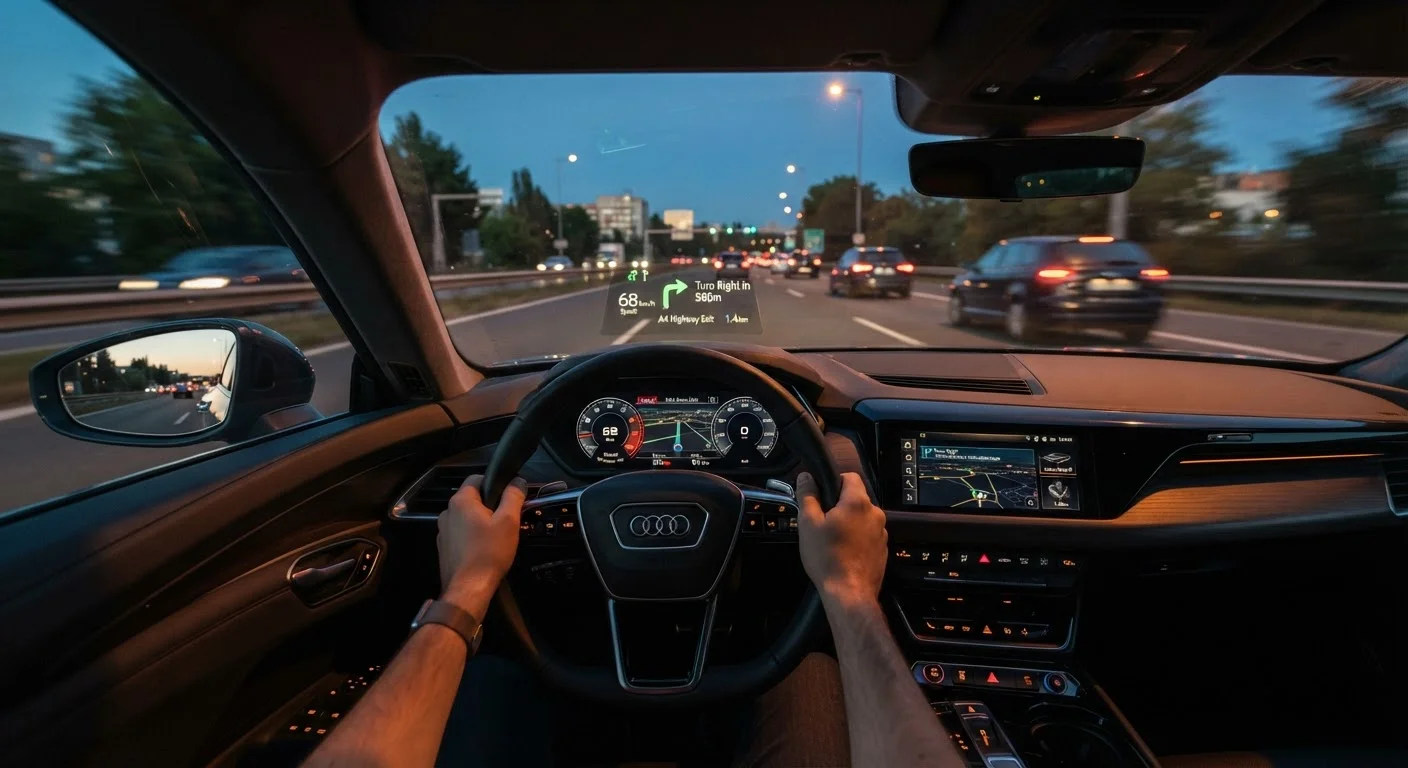
What a Head-Up Display Actually Does
A head-up display (HUD) uses a small projector — typically built into the instrument panel — to reflect an image onto your windscreen or a dedicated transparent panel in your line of sight. The result is a set of data readouts that appear to float just above the hood of your car, roughly 2–3 meters ahead in your focal plane. Because the information sits in front of you rather than below or to the side, your eyes don't need to refocus as dramatically as they do when you glance at a traditional dashboard.
Most factory-fitted HUDs display a subset of the following: current speed, posted speed limit (via GPS or camera), navigation turn instructions, active driver-assistance alerts (such as lane-departure warnings), fuel range, and incoming call or audio information. The exact content depends on the vehicle and what the manufacturer has enabled — and in most cases, you can customise which fields appear through the infotainment system. See our guide to infotainment systems for a plain-language walkthrough of those menus.
Understanding what your HUD can show is the first step. Knowing what it should show — for your typical driving — is what makes the feature genuinely useful rather than visually cluttered.
Setting Up Your HUD Before You Drive
What you will need
Sit in your normal driving position
Before adjusting anything, settle into the seat exactly as you would when driving — seatbelt on, mirrors set, hands on the wheel. HUD height is calibrated to eye level, so any adjustment made from an unusual seating position will be off once you're actually driving.
Adjust the display height
Use the HUD height control — usually a dedicated button or a setting within the instrument cluster or infotainment menu — to move the projected image up or down. The target position is where the data sits just below your natural horizon line when looking down the road. You should not need to dip your chin to read it.
Set display brightness
Most HUDs offer manual or automatic brightness control. In automatic mode, a sensor adjusts the projection for ambient light conditions. If you drive frequently in varied lighting — early mornings, tunnels, or bright midday sun — automatic mode is generally more practical than a fixed setting.
Choose which data fields to display
Navigate to the HUD content settings in your infotainment or vehicle settings menu. Enable the fields most relevant to your typical driving: speed and speed limit are useful for almost everyone; navigation prompts are valuable on unfamiliar routes; safety alerts (lane departure, forward collision warnings) are worth keeping on if your vehicle supports them. Disable fields you rarely need — media metadata or fuel economy readouts, for instance — to reduce visual clutter.
Verify the setup with a slow, familiar drive
On your first outing with a newly configured HUD, choose a familiar, low-traffic route. This lets you verify that the height and brightness feel right in real conditions and gives you the mental space to practice brief, intentional glances without the added cognitive load of navigating somewhere new. Adjust settings again when parked if anything feels off.
Using Your HUD Safely on the Road
Once configured, the HUD becomes a peripheral-vision tool rather than a reading surface. The key discipline is treating each glance the same way you'd treat a mirror check — brief, purposeful, and followed immediately by returning full attention to the road ahead.
Safety researchers refer to this as minimising eyes-off-road time. A glance lasting under 1.5 seconds is generally considered low-risk; glances that stretch to 2 seconds or more carry meaningfully higher distraction risk. A well-set HUD helps keep each glance within that safe window because the data is already in your sight line and requires no head movement.
Two areas where drivers commonly misuse their HUD: treating navigation prompts as a substitute for spatial awareness (the arrow tells you to turn, but you still need to check for cyclists and pedestrians), and attempting to read detailed information — song titles, full phone numbers — while moving. Keep detailed interactions for when you're stationary. For a broader look at in-car distraction beyond screens, our article on distractions beyond your phone covers the full picture.
Less Content Means Clearer Glances
It can be tempting to enable every available data field — but a crowded HUD forces your brain to search for the relevant number rather than absorb it instantly. Limit active fields to three or four that genuinely inform your driving. You can always revisit distraction-free infotainment practices for more guidance on managing in-car information sensibly.
Also be aware that a HUD doesn't replace your mirrors or your awareness of what's happening around the car. Safety features like lane-keeping assist or blind spot monitoring feed alerts to the HUD — they don't operate through it. Understanding the limits of each system keeps you safer than assuming the display will catch everything.
Troubleshooting Common HUD Problems
Even a properly set-up HUD can become hard to read under certain conditions. Here's how to handle the most common issues:
- Glare in bright sunlight: Increase the display brightness to its maximum daytime setting, or use a sun visor to reduce ambient glare on the windscreen. Some vehicles automatically adjust brightness via a light sensor — check whether this is enabled in your settings.
- Image appears doubled or blurred: Most windscreens used with HUDs have a slight wedge shape in the projection zone to prevent double images. If you notice a persistent double image, the display height may need recalibration. Consult your owner's manual for the adjustment procedure, as it varies by vehicle.
- Polarised sunglasses washing out the display: This is a known compatibility issue. HUD projections are polarised light, and certain lens orientations can make the image nearly invisible. Try tilting your glasses slightly or switching to non-polarised lenses for driving.
- Navigation data not appearing: The HUD typically pulls navigation from the infotainment system. If no route is active, the navigation field will be blank or hidden. Start a route through the infotainment unit and the HUD should populate automatically.
If you're getting to grips with a new vehicle that includes a HUD for the first time, our checklist on familiarising yourself with a new car's tech is a practical place to start before your first drive.